Blogger Title Fix 2.0

April 23rd, 2008

While attempting an upgrade to Wordpress 2.5 I discovered that the blogger-title-fix plugin wasn’t working anymore. I have fixed it and a few other bugs and published a new version.

http://notions.okuda.ca/wordpress-plugins/blogger-title-fix/

Bookmark and Share

BC Ferries Conditions

August 27th, 2007

I’ve created the BC Ferries Current Conditions Google Gadget that displays the current conditions at the major BC Ferries terminals. It is similar to the Border Wait Times gadget.

Bookmark and Share

GPX Viewer is now hosted by Google Code

July 30th, 2007

I have put the GPX Viewer script (loadgpx.js and some samples) project on Google Code here http://code.google.com/p/gpxviewer/.

The primary reason is to add version tracking to the script code. Now the complete history of the script can be viewed as well as any bug fixes. Google Code uses a SVN repository to track changes and history. You can download the content from Google Code, or checkout the project using an SVN client.

Another reason is issue management (bugs). This will allow issues to be tracked more easily. Right now I have some comments on the blog about bugs in the code, but no formal process for tracking them. I have just recently fixed a couple of issues that have been reported – those changes are now reflected in the SVN repository.

The primary home page of the project will remain http://notions.okuda.ca/geotagging/projects-im-working-on/gpx-viewer/ for now, but some new documentation may appear on Google Code. This will save me from installing my own wiki and defect tracking system and SVN server to host my projects.

Other projects on Notions may become Google Code projects in the future, but there is a limit to the number of projects that one can create. This will likely rely on the amount of effort I’m willing to put into the project. GPX Viewer had some issues that I wanted to address and I thought that I should move it into a source control system before I did.

Feel free to visit http://code.google.com/p/gpxviewer/ and download the latest version in the trunk. I have not published the latest version with the latest fixes, so it is slighly more up to date than the one hosted here. It contains an example that will run on a local PC web server as-is. I will publish a new version soon.

Bookmark and Share

Cool CSS Image Border Style

February 6th, 2007

I was recently playing around with my family photo blog, trying to give the photos a bit more pizzazz.

I found some interesting tutorials for making CSS borders here at mandarindesign.com and a very nice looking drop shadow like this one from 1976design.com. The problem is that they either require nesting <img> tags within <div> tags or are a bit bland. Nesting tags would have required me to go through all my old blog posts and wrap every <img> with a <div>.

After some experiments I came up with a very cheap pseudo drop shadow that is quite effective using nothing but simple CSS style.

All I’ve done is center the image and add padding of 8 pixels surrounded by a border. The trick is that the top and left edges of the border are only 1 pixel wide, while the right and bottom are 2 pixels. Also, the top and left sides of the border are a slightly lighter colour than the bottom and right.

Since it is intended for all thumbnail images in my WordPress blog posts, the following is what I added to my theme style. It is applied to all <img> tags within <a> tags within a <div> of the class “post”.


.post a img {

/* This centers the image */
display: block;
margin-left: auto;
margin-right: auto;

/* This adds the border */
padding:8px;
border:solid;
border-color: #dddddd #aaaaaa #aaaaaa #dddddd;
border-width: 1px 2px 2px 1px;
background-color:white;
}

It is really just a bevel but the width and colour differences trick the eye into seeing something that more closely resembles a drop shadow.

Above is a stand alone example page and sample image.

Bookmark and Share

Portrait Pumpkin Carving

October 27th, 2006

This is the step by step process that I use to create portrait pumpkins of my family each year.

Getting Started

First you need good image editing software. I used Photoshop Elements 3.0 to make this tutorial. Any good image editing software should work, such as the free tool Gimp, though the instructions may be a bit different.

Next, you need a good photo or image of your subject. For the purposes of this tutorial we are making a portrait of a person from a photgraph. The lighting is important as the lightest parts will be carved out of the pumpkin so the dark parts must all connect with the border. It is best is if the primary light source is off to a side and not directly behind the photographer so there are some shadows that connect the dark parts of the face.

This is the original photo I chose for Matthew’s portrait.

Matthew Pumpkin Original

Simple Instructions

  • Start with a good photo
  • Make the photo grayscale
  • Add a levels layer
  • Add a posterize layer with 3 levels
  • Adjust the black, white, and midtone levels layer sliders
  • Do any required touchup to the background layer

Detailed Instructions

Step 1. Start with a good photo as described above. I cropped the photo to just include Matthew’s face.

Matthew Pumpkin Pattern Crop

Step 2. Make the photo grayscale

Make the photo grayscale
Matthew Pumpkin Grayscale

Step 3. Add a levels layer.

New Levels Layer

Step 4. Add a posterize layer.

New Posterize Layer

When prompted, select 3 levels. You can carve a pumpkin with three brightness levels by removing just the outer skin over some areas. This area will glow when lit from inside, but is not as bright as where all the flesh is removed. You can see how this works by looking at some of the examples at the end.

3 Posterize Levels

Now you should have three layers including the background.

Three Layers

Step 5. Adjust the levels layer sliders

Open the levels window by double clicking on “Levels 1″ in your layer view. There are three sliders under the histogram to adjust the Input Levels. Each one corresponds to each of the three levels of the posterize layer.

Adjust Levels

If you want to increase the black area move the left arrow to the right. If you want to increase the white area move the white arrow to the left. Moving the center arrow left and right will change where the grey level is calculated for the posterization. This will take some adjustment.

Remember, a white area cannot surround a dark area since the white area will be removed. You should make sure that all the dark areas are connected to each other and to the edges of the image.

This is what I got with the level values above (84, 1.08, 212)

Matthew Pumpkin Levels

Step 6. Do any required touchup.

Make sure to select the Background layer before making any changes.

In the image above Matthew’s left eye is a bit too dark but adjusting the sliders to brighten it up made the rest of the image too bright. I decided to leave it dark with the levels and brighten it up manually since all the detail is in the original image.

Brush Tool

To brighten just a small area of the image select the “Brush Tool” and set the Mode to “Lighten” with an Opacity of 10%. I select the softest brush to blur the changes as much as possible and choose a brush size that is just a bit bigger than needed. You should also set the brush draw colour to white.

Brush Tool Options

I used this around the eyes to bring out some of the highlights by very carefully clicking where the whites of his eyes should be to lighten them just enough to change their colour from black to grey. Just single clicks over the areas I want to lighten until it looks good.

Eye Touchup

I also lightened up other areas of the face to increase the cut area. I made the brush larger and set the opacity to 3% to cover larger areas very quickly.

Final Pumpkin Pattern

Notes:

You can get a similar but reversed result if you set the brush mode to “Darken” and the colour to black. Any areas you draw over will darken.

You may find that it helps to look at the original layer by disabling the levels and posterize layers. This allows you to see what areas will benefit the most.

Blurring the Background layer will also help smooth some of the edges in the final output. This makes the pattern a bit more crisp with clearer lines separating each section. Using the Blur Tool keeps the changes localized to the areas that need it.

Conclusion

Once the pattern is complete you just need to print it out to use as a pattern. You can save yourself some ink if you create a new Levels Layer above the Posterize Layer and drag the black “Output Levels” arrow to the right to lighten the entire image. All you need to do is be able to see the difference between the three levels while transfering the pattern to the pumpkin, it doesn’t have to be solid black. You should also use the lowest quality level of your printer since the details are not important and will be lost during the transfer.

Now you just need to get that onto your pumpkin. The three colours of the pattern represent three states of pumpkin. The black is where you do not cut the pumpkin and leave the skin intact. The grey areas are where you remove the outermost layer of skin, but leave some meat – you can adjust the brightness of those areas by adjusting the thickness of the remaining pumpkin. The white area is where you cut out and remove the pumpkin, like you are used to. While you are carving the pumpkin will look odd until you get it into the correct lighting. The pumpkin should be viewed in the dark with a light source inside. This makes the white areas of the pattern the brightest and the black areas the darkest.

The most common way to transfer the pattern is to tape the pattern to the pumpkin and poke holes along the borders of each coloured area through the paper. You can find other patterns and tools at many stores around halloween and instructions online.

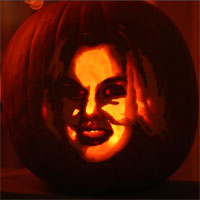
Here is the pattern carved into a pumpkin.
Pattern on a Pumpkin

Examples

Here are some previous patterns and pumpkins that I have made using this technique.

Example 4Example 1Example 2Example 3

Bookmark and Share

Notions is Digg proof thanks to caching by WP Super Cache